Inventory
Inventory tracks IT equipment and software licenses across agents, LOBs, and
client accounts — from intake through assignment to disposal. Every asset,
movement, shipment, and license seat is tenant-scoped and audited. Open it from
the sidebar under Inventory (/inventory).
The asset registry
/inventory lists every asset with its current state at a glance. Filter by
status, or search by serial, tag, or model. Each row shows the asset tag and
model, type, status, condition, who it's assigned to, and location.
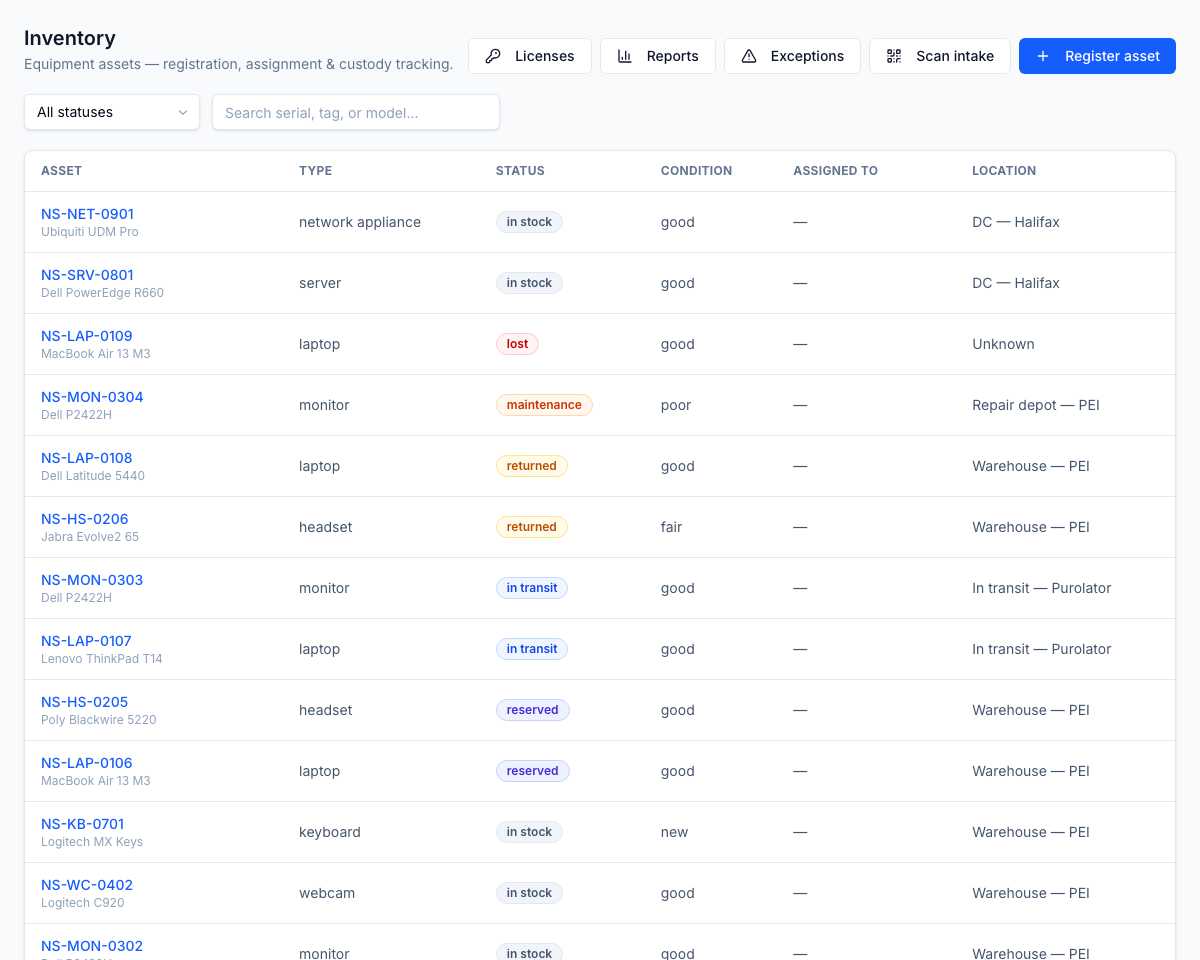
An asset moves through an eight-state lifecycle:
| State | Meaning |
|---|---|
in_stock | Available in a warehouse or depot |
reserved | Earmarked for an assignment but not yet shipped |
assigned | Currently with an employee or piece of infrastructure |
in_transit | Shipped, not yet delivered |
returned | Came back, awaiting inspection or restock |
maintenance | Out for repair or assessment |
retired | End of life, removed from the active fleet |
lost | Unaccounted for (e.g. lost in transit) |
The toolbar links across to Licenses, Reports, and Exceptions, and gives you the two ways to add an asset: Register asset and Scan intake.
Adding assets
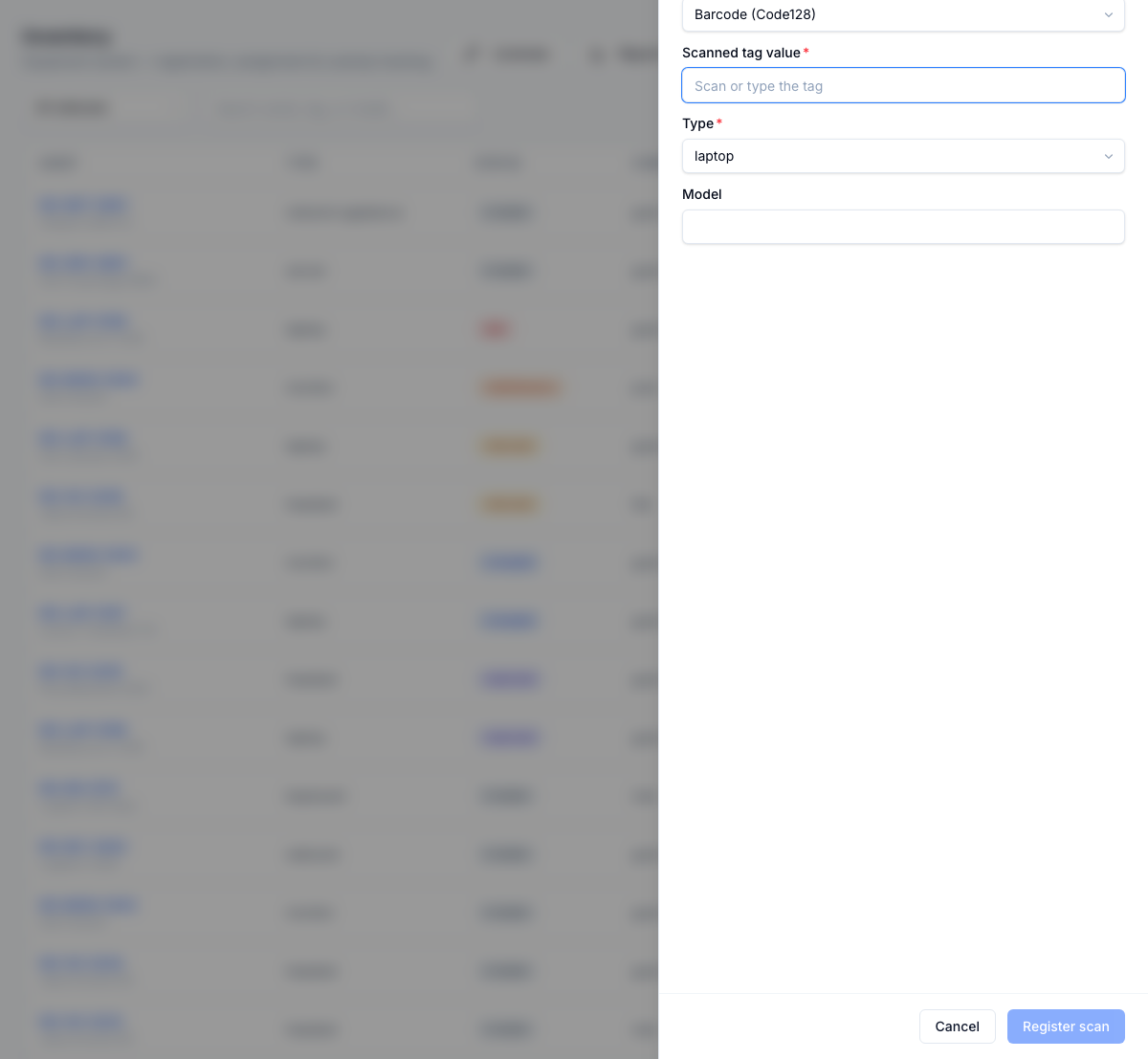
Register a device by hand with Register asset, or use Scan intake to pull it in from a barcode, QR, or RFID tag. The intake dialog validates the scanned value (Code128 barcodes), captures the type and model, and records the intake source for the audit trail.
Restricted asset classes can be routed through a policy-exception request and approval before they're handed out, so high-value or sensitive equipment carries a sign-off.
The asset detail page
/inventory/[id] is the working surface for a single asset. It pulls together:
- Details — category, type, condition, serial, asset tag, location, owner type, purchase date, and purchase cost.
- Current assignment — who has it, when it went out, and the expected return date. An asset can have only one open assignment at a time — the assignment ledger is the source of truth for custody.
- Exceptions — any open flag on the asset (overdue, lost, damaged) with a one-click Resolve.
- Warranty — the warranty window and provider, with a Renew action and a due/not-due indicator.
- Timeline — an append-only log of every movement (assign, ship, status change, return), each stamped with the actor, time, and related record.
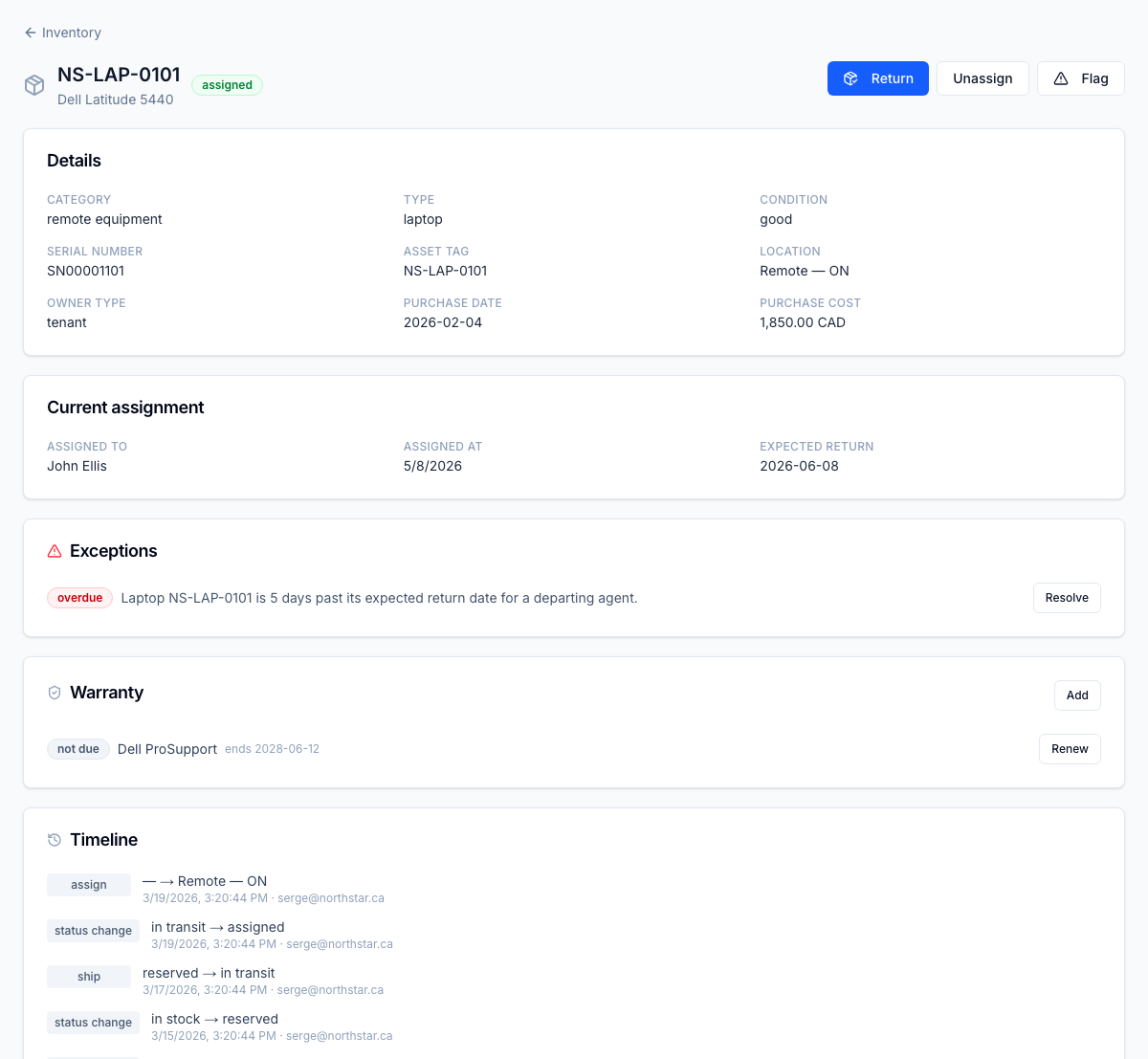
The header actions follow the lifecycle: Assign, Ship, Return, Flag an exception, and Retire.
Shipments, returns & exceptions
Ship a device to an agent with carrier and tracking detail, mark it delivered,
and record the return (the disposition — good, damaged, lost — drives the
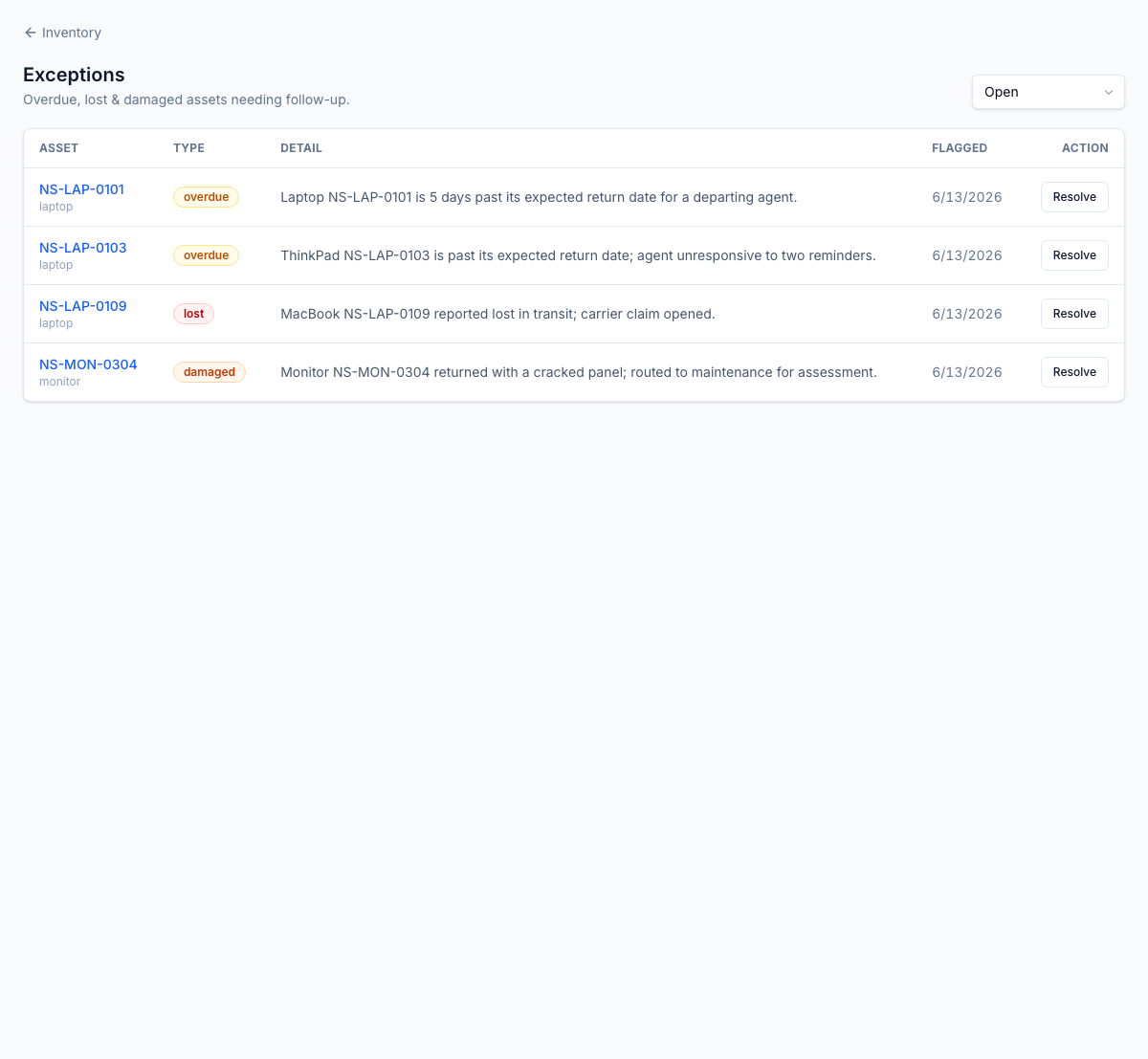
resulting state). Anything that goes wrong surfaces on the Exceptions queue
at /inventory/exceptions: overdue, lost, and damaged assets that need
follow-up, each with a Resolve action.
A daily scanner watches for overdue returns and escalates to HR once an item passes twice the tenant's configured return window, so a departing agent's laptop doesn't quietly disappear.
Warranty, disposal & reports
Each asset carries its warranty window, and a daily scanner raises an alert as expiry approaches. Retiring and disposing of an asset is a controlled, terminal step that requires a compliance reference and writes a sensitive audit event; ownership can also be transferred between owners.
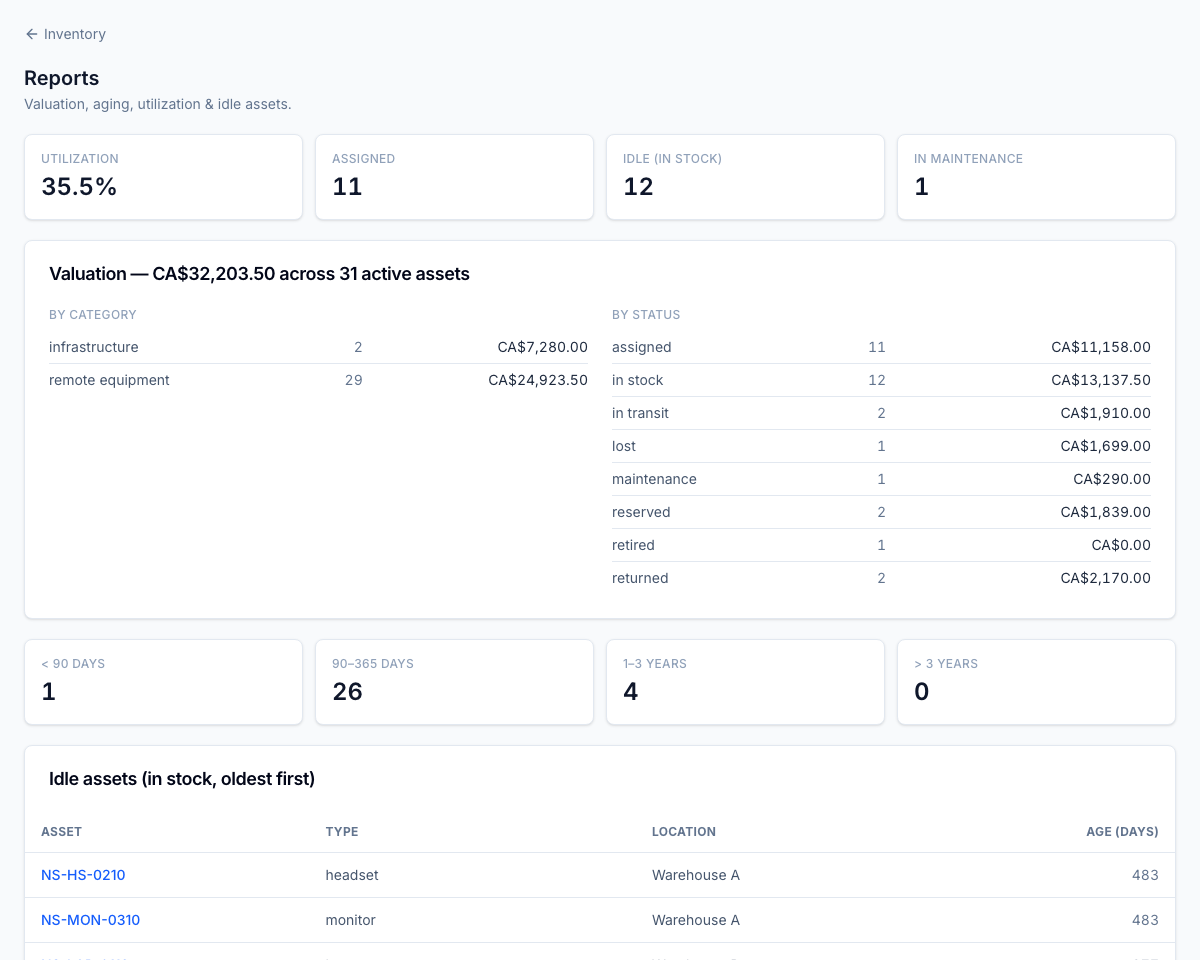
The Reports surface at /inventory/reports rolls the fleet up four ways:
- Utilisation — assigned vs idle vs in-maintenance counts.
- Valuation — total purchase cost, broken down by category and by status.
- Aging — assets bucketed by age (
< 90 days,90–365,1–3 years,> 3 years). - Idle assets — in-stock equipment, oldest first, so you can redeploy before buying more.
Software licenses
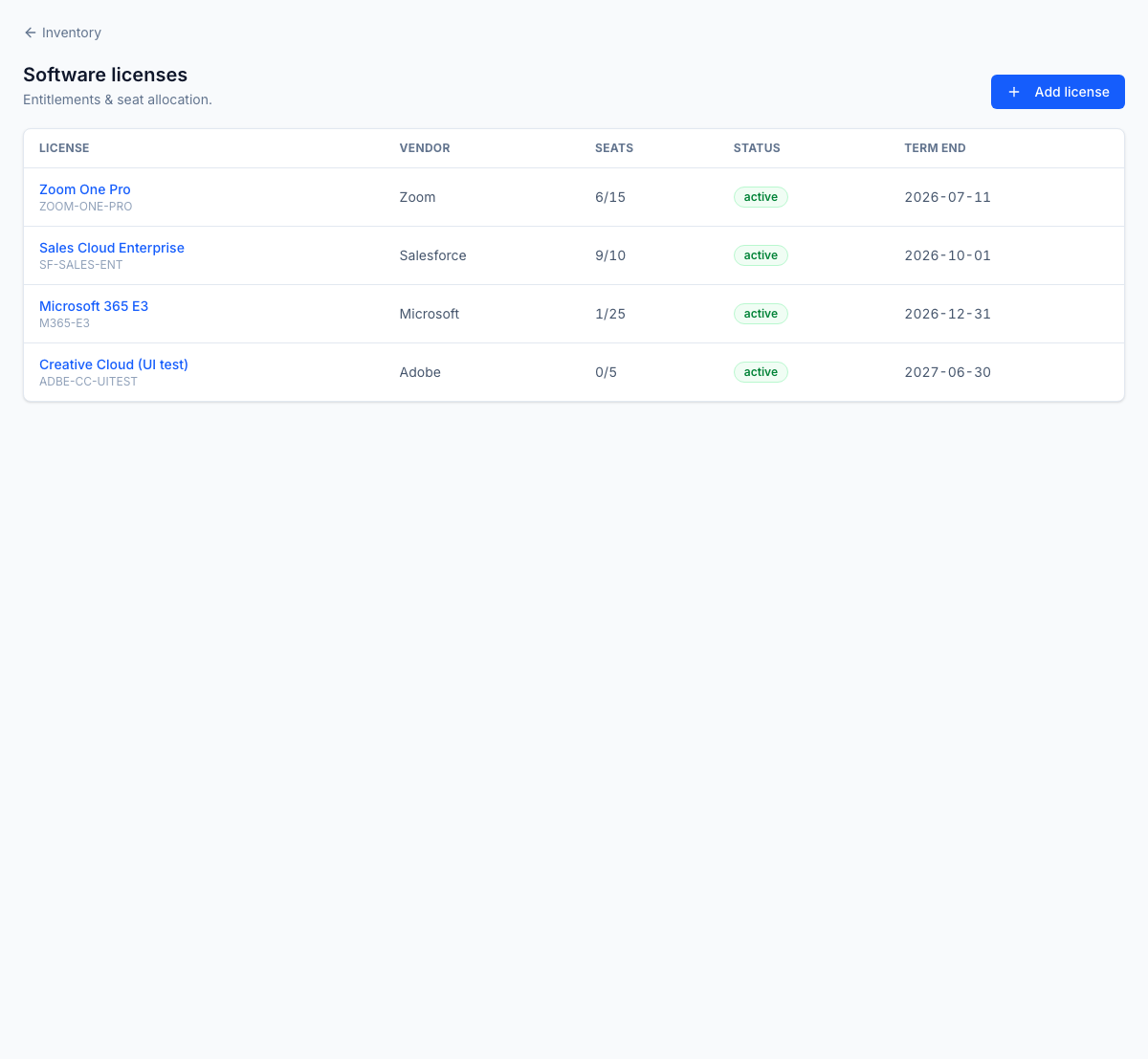
/inventory/licenses is the license inventory: product, vendor, seats used out
of total, status, and term end. Assign and unassign seats per license — the seat
count is capacity-enforced, so an over-allocation is rejected rather than
silently oversubscribed. A daily scanner flags licenses nearing expiry or
running low on seats.
Offboarding returns
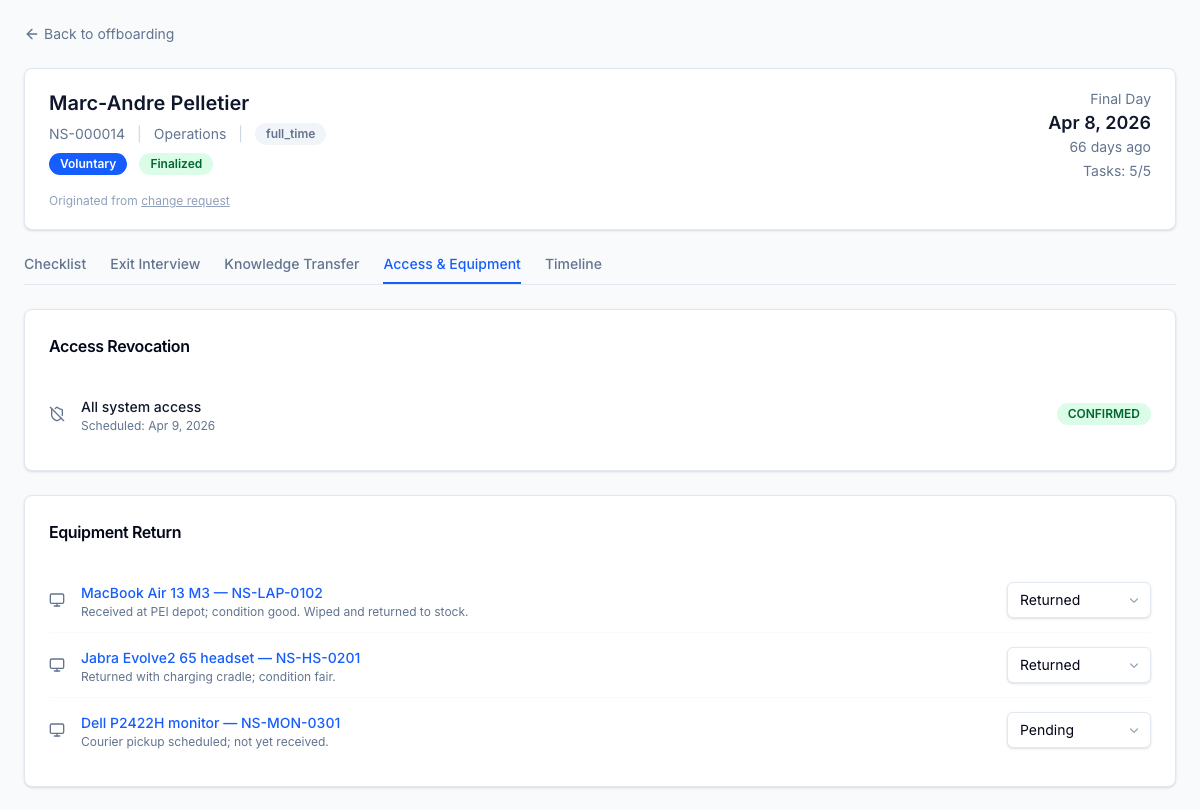
When someone leaves, each asset they hold becomes its own return task on the exit checklist — not one generic "return equipment" line. On the offboarding record's Access & Equipment tab, every assigned device shows up with a return status (Returned, Pending) and a note, alongside the access-revocation record.
Roles
| Permission | Typical role | Lets the user… |
|---|---|---|
inventory.* | IT asset manager | Full control — registry, assignment, shipments, warranty, disposal, licenses, exceptions |
inventory.asset.read | HR admin | Read the asset registry (for example, to see what a departing employee holds) |
Pairs with
- Offboarding — a departing employee's assets become return tasks on the exit checklist.
- Onboarding — equipment is provisioned as part of bringing a new hire online.