Logging In
FrontLine uses a two-step login flow. You enter your workspace first, and the system determines the best way to authenticate you — either through your organisation's Single Sign-On (SSO) provider or with a password.
Step 1: Enter your workspace
- Navigate to the FrontLine login page.
- Enter your workspace name (e.g.,
northstar). This is the identifier your organisation uses for FrontLine. - Click Next.
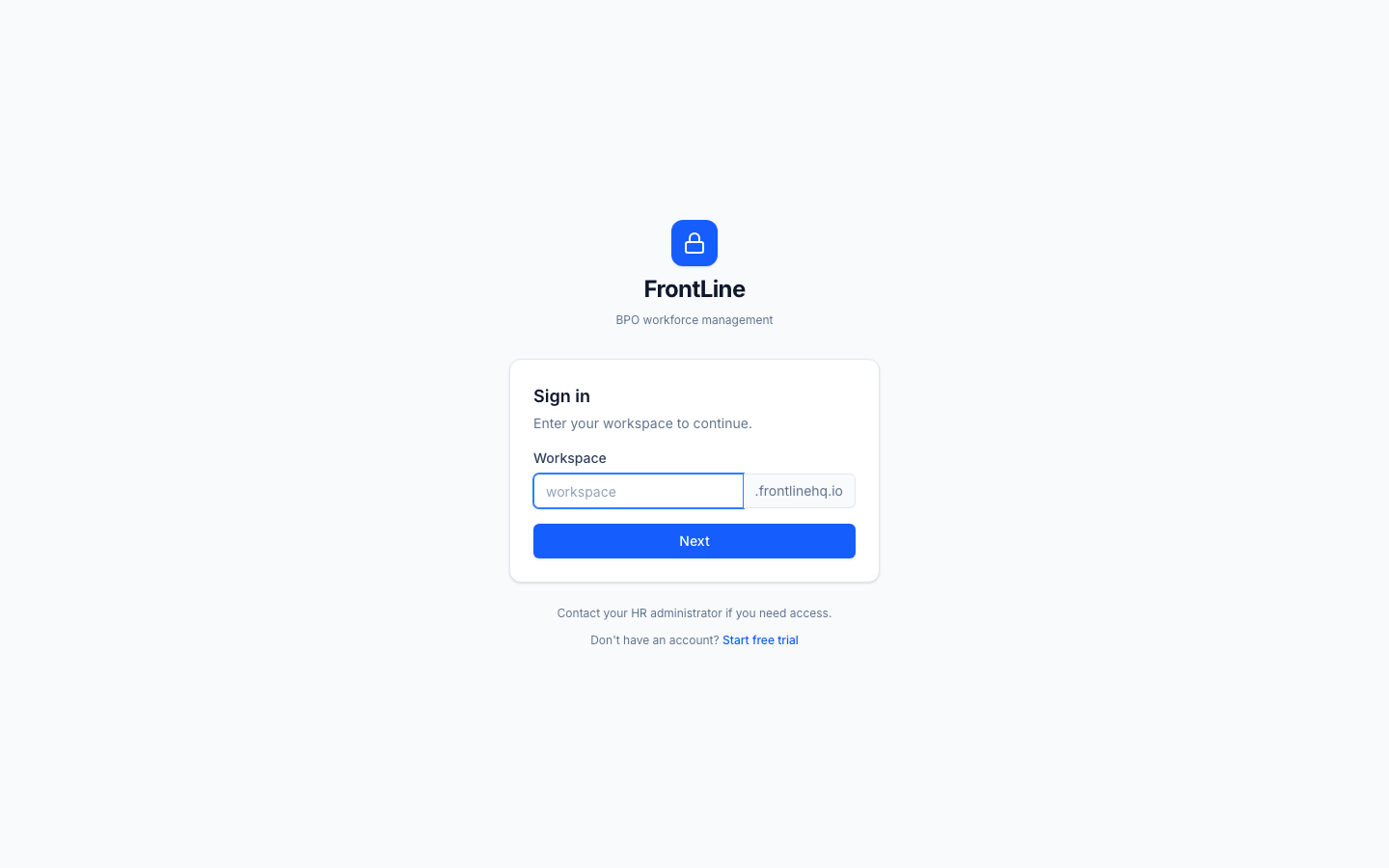
FrontLine checks how your workspace is configured for authentication. What you see next depends on your organisation's settings.
Step 2: Authenticate
If your organisation uses SSO
You will see a "Sign in with [Provider]" button (e.g., "Sign in with Entra ID"). Click it to be redirected to your identity provider's login page. After authenticating there, you are returned to FrontLine automatically.
If your organisation enforces SSO, the password option is not shown — SSO is the only login method available.
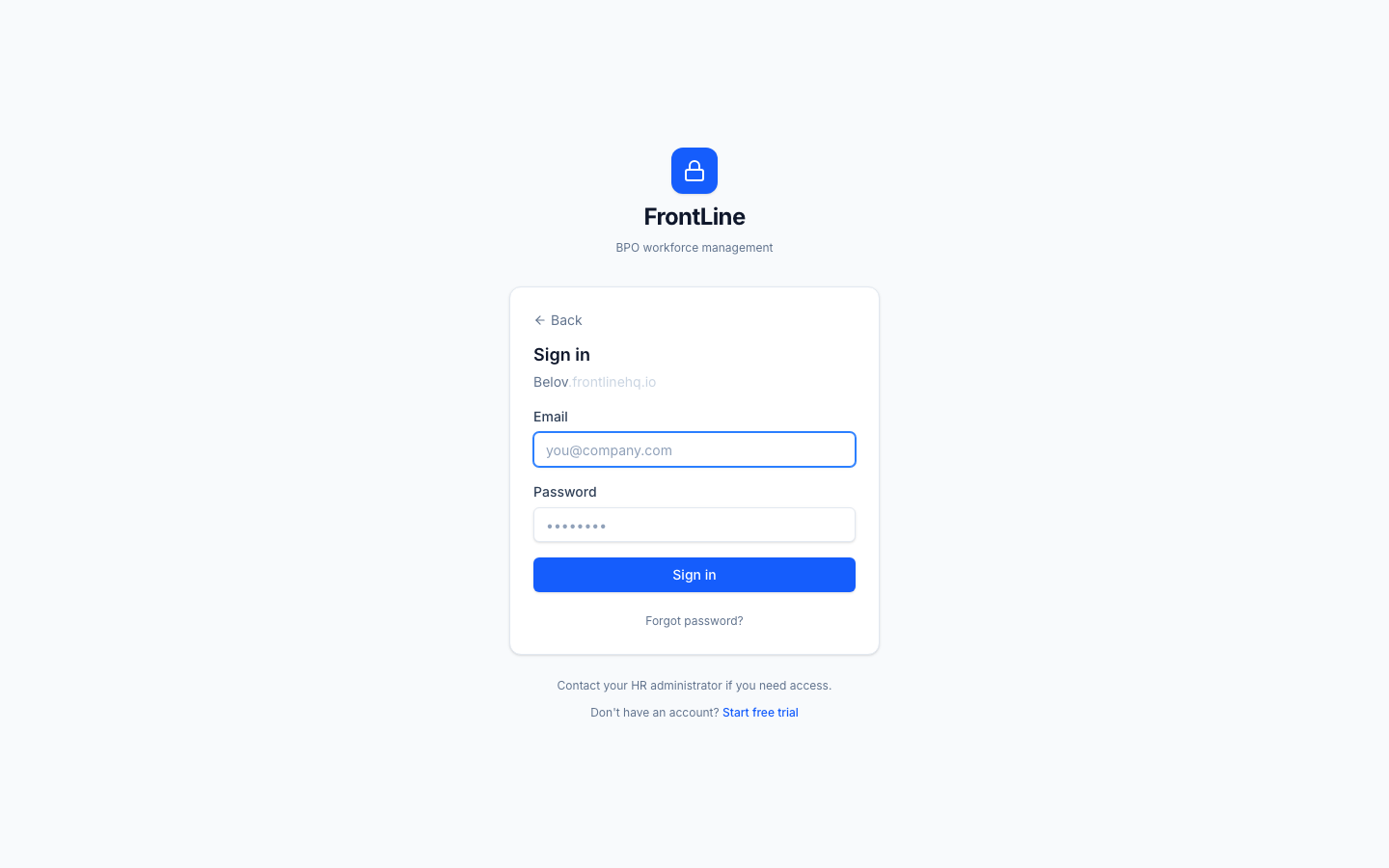
If your organisation uses passwords
Email and password fields appear. Enter your credentials and click Sign in.
If you have forgotten your password, contact your tenant administrator to reset it.
If both are available
Some organisations allow either method. You will see the SSO button and email/password fields — use whichever you prefer.
Multi-Factor Authentication (MFA)
If MFA is enabled for your account, you will be prompted for a second verification step after entering your password (or after SSO login, if your identity provider did not already verify MFA).
- Open your authenticator app (Google Authenticator, Authy, 1Password, etc.).
- Enter the 6-digit code shown in the app.
- Click Verify.
If you don't have access to your authenticator app, click Send email code to receive a one-time code at your registered email address instead.
After completing MFA, you can check "Remember this device for 30 days". This skips the MFA prompt on future logins from the same browser. The trust is revoked if you change your password, reset MFA, or sign out of all devices.
First-time login (accept invite)
If you received an invitation email from your administrator:
- Click the Accept Invite link in the email.
- Set your password (minimum 8 characters).
- Set up MFA — scan the QR code with an authenticator app and enter the 6-digit verification code.
- You are redirected to the Dashboard.
If MFA is required by your organisation and you haven't set it up yet, the MFA enrollment screen appears automatically after your first login — you must complete enrollment before accessing the app.
After login
After successfully logging in you are taken to the Dashboard, which shows a summary of open requisitions, candidates in pipeline, onboarding activity, and active employees.
Sessions remain active for 15 minutes of inactivity by default. You will be prompted to re-authenticate when your session expires.
Troubleshooting
| Problem | What to do |
|---|---|
| "Workspace not found" | Check the workspace name with your administrator. Make sure you're entering the slug, not the full URL. |
| You see a password field but expected SSO | Your workspace may not have SSO configured yet. Contact your tenant administrator. |
| SSO redirects to the wrong provider | Check with your administrator that the correct IdP is configured for your workspace. |
| "SSO required" error when entering a password | Your organisation enforces SSO. Use the SSO button instead. If you are a break-glass admin, click the link below the SSO notice to access the password field. |
| MFA code rejected | Ensure your authenticator app's clock is synced. If the code still fails, request an email code instead. |
| Prompted for MFA unexpectedly on a trusted device | Browser updates, clearing cookies, or a password change can reset device trust. Complete MFA again and re-check "Remember this device". |
| Account locked after failed attempts | Wait for the lockout period to expire (progressive backoff), then try again. Contact your administrator if the issue persists. |