Navigating FrontLine
The sidebar
The left sidebar is the primary navigation for the platform. It groups all modules into logical sections. Click any item to navigate to that module.
The active client context (the client account you are currently working in) is shown at the top of the sidebar. You can switch client context from there to filter all views to a specific client.
The dashboard
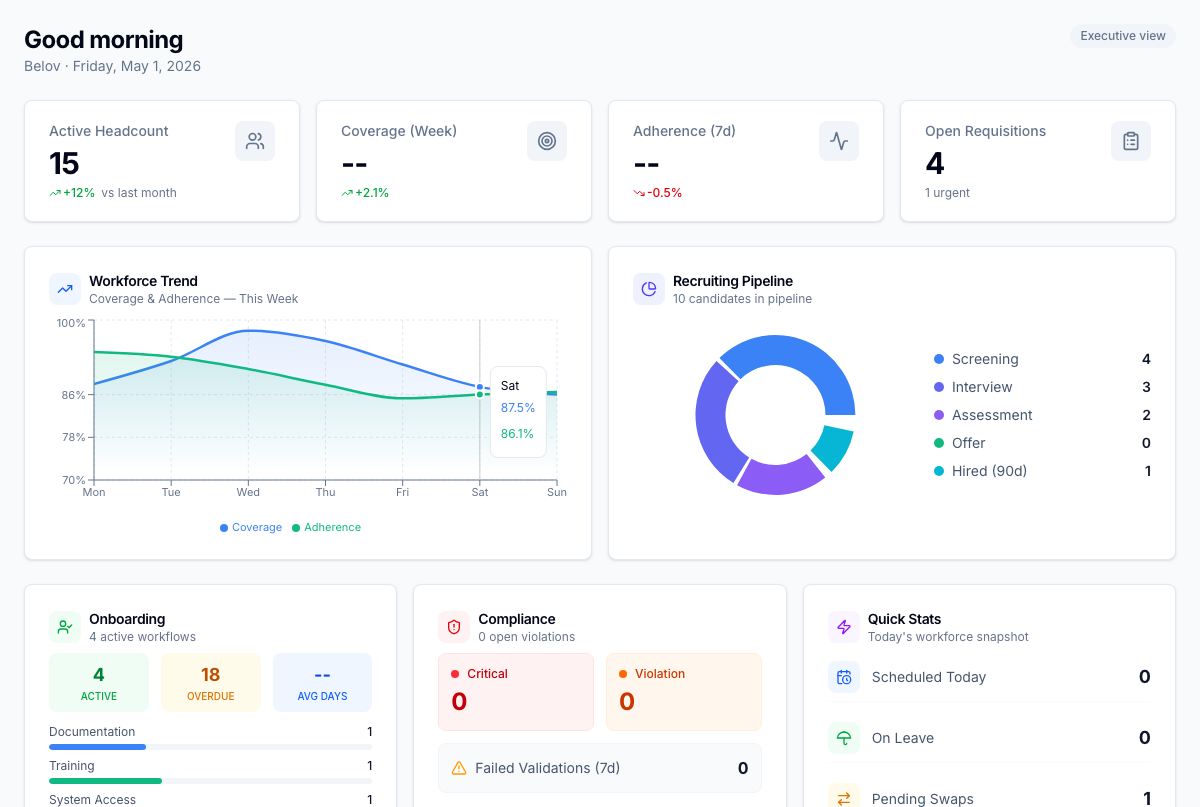
The Dashboard is the landing page after login. It provides four at-a-glance KPIs:
- Open Requisitions — total active job postings
- Candidates in Pipeline — candidates with active applications
- Onboarding In Progress — new hires currently in an onboarding workflow
- Active Employees — total headcount with active status
Below the KPIs, a Recent Activity feed shows the latest events across recruiting, onboarding, and employee management — with the actor, resource type, and timestamp.
Client context switcher
FrontLine is multi-client. The context switcher at the top of the sidebar lets you scope your view to a specific client account or line of business. When a client is selected, lists and records throughout the platform filter to that client's data.
Select All clients to return to the unfiltered cross-client view (available to tenant admins and users with cross-client access).
Keyboard navigation
Use Tab to move between interactive elements. All modals and dialogs support Escape to close.